

The Best Ways to Clean and Maintain Your Laptop for Optimal Performance
Keeping a laptop clean and well-maintained is essential for its longevity and performance. Regular cleaning not only enhances its appearance but also prevents overheating and functionality issues caused by dust and grime buildup. The best ways to clean and maintain a laptop include routine dusting, screen cleaning, and proper storage.
To achieve optimal performance, individuals should establish a cleaning schedule that involves both interior and exterior maintenance. Utilizing appropriate cleaning supplies, such as microfiber cloths and gentle screen cleaners, can prevent damage while effectively removing smudges and dirt. Regularly checking for software updates and running maintenance programs will also contribute to a smoother experience.
Incorporating these simple practices into a regular routine can extend the life of a laptop significantly. By understanding the best methods for cleaning and maintenance, users can ensure their devices operate at peak efficiency and retain their value over time.
Essential Tools and Preparation
Proper cleaning and maintenance of a laptop require specific tools and preparation to ensure effective results. Selecting the right materials and creating a safe cleaning environment are crucial steps in the process.
Choosing the Right Cleaning Materials
The choice of cleaning materials significantly influences the effectiveness of laptop maintenance. Microfiber cloths are ideal for wiping screens and surfaces as they minimize scratches and leave no lint behind. It is essential to avoid paper towels or rough fabrics, which can damage the screen.
For deeper cleaning, a solution of isopropyl alcohol mixed with distilled water is recommended. A common ratio is 1:1, which effectively disinfects without harming electronic components. An electric air duster can also be highly effective for removing dust from hard-to-reach areas like keyboards and vents. Avoid using household cleaners that contain ammonia or bleach, as these can damage finishes.
Safety Precautions Before Cleaning
Taking safety precautions can prevent damage to both the laptop and the individual performing the cleaning. First, ensure the laptop is powered off and unplugged. This helps avoid any electrical shock or unintentional data loss during the cleaning process.
Wearing gloves, especially when using cleaning solutions, can protect the user from skin irritation. It’s also advisable to work in a well-ventilated area to mitigate any fumes from cleaning solutions. Using safety goggles may be beneficial when employing an electric air duster to prevent debris from flying into the eyes, especially when cleaning the keyboard.
Preparing Your Workspace
Creating an organized and clean workspace is critical for effective laptop maintenance. Users should choose a flat, stable surface free from clutter to avoid accidents. A clean cloth can be laid down to provide a protective area for the laptop during cleaning.
Gather all necessary tools before starting. This includes microfiber cloths, isopropyl alcohol, distilled water, and the electric air duster. Having these materials on hand prevents interruptions during the process. Additionally, placing the laptop near a power source ensures that the user can conveniently charge the device if needed after cleaning.
Step-by-Step Laptop Cleaning Methods
Regularly cleaning a laptop enhances its performance and extends its lifespan. Following specific steps ensures thorough and effective cleaning without causing any damage.
How to Clean the Laptop Screen
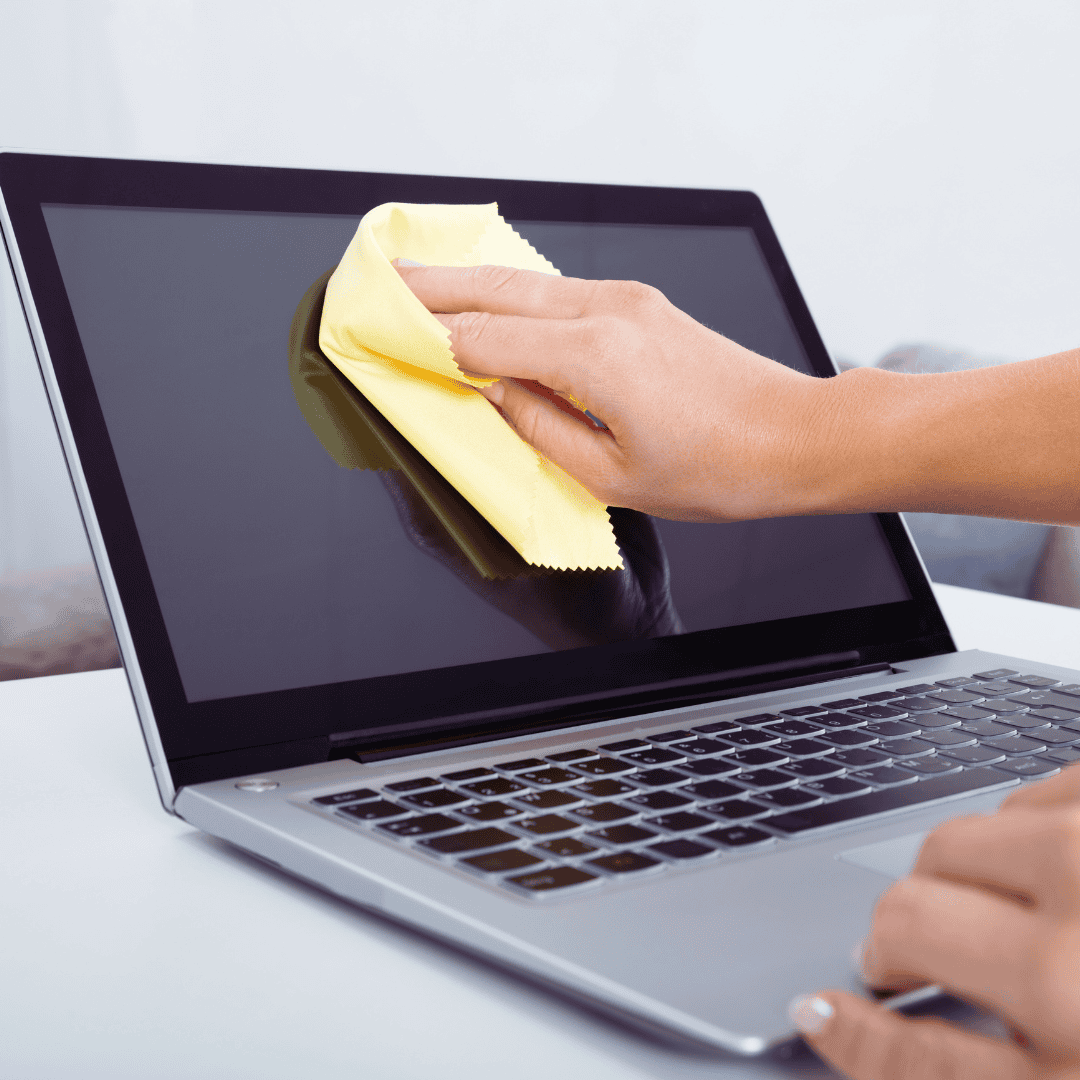
To clean the laptop screen, start by turning off the device and unplugging it. Use a microfiber cloth to avoid scratches. Dampen the cloth slightly with a mixture of distilled water and isopropyl alcohol (50/50 ratio).
Gently wipe the screen in circular motions, avoiding excessive pressure. For tough spots, allow the solution to sit for a moment before wiping. Ensure that no liquid seeps into the edges. Dry the screen with a dry section of the microfiber cloth to prevent streaks.
Cleaning the Keyboard and Touchpad
Cleaning the keyboard and touchpad can greatly impact usability. First, turn off the laptop and use an electric air duster to blow away debris from between the keys.
For deeper cleaning, use a slightly damp microfiber cloth with the same distilled water and isopropyl alcohol mixture. Wipe the keys and touchpad gently, paying attention to bumpy textures. Avoid pouring any liquids directly on the keyboard. Let it air dry completely before powering it back on.
Removing Dust from the Vents and Ports
Dust accumulation in the vents and ports can affect cooling and connectivity. Using an electric air duster, blow short bursts of air into the vents to dislodge dust.
For the ports, use a soft brush or a microfiber cloth to gently clean the exterior. If there is stubborn dirt, use a cotton swab lightly moistened with isopropyl alcohol. Avoid using sharp objects inside the ports to prevent damage.
Wiping Down the Exterior Surfaces
Cleaning the exterior surfaces of a laptop is essential for aesthetics and hygiene. Use a microfiber cloth slightly moistened with isopropyl alcohol to wipe down the lid and bottom.
Be cautious around hinges and logos, as excessive moisture can lead to damage. For rubber or plastic areas, a damp cloth works well. Ensure the laptop is completely dry before closing or using it. Clean the exterior regularly to maintain a professional appearance.
Best Practices for Laptop Maintenance
Maintaining a laptop involves several critical aspects that help ensure its durability and functionality. Battery care, proper storage, and consistent software updates play vital roles in extending a laptop’s life and performance.
Battery Care and Longevity
Taking care of the laptop battery is essential for performance. To prolong battery life, it is recommended to keep the charge between 20% and 80%. Avoid letting the battery drain completely often, as this can reduce its lifespan over time.
Using power-saving modes when on battery power also reduces drain. Additionally, laptops should not be left plugged in all the time; overcharging can degrade battery health. If the laptop will not be used for an extended period, store it with a charge of about 50%.
Proper Storage and Transportation
Proper storage and transportation will protect a laptop from physical damage. When not in use, it should be kept in a padded laptop bag to absorb shocks. This is particularly important if it needs to be carried in a backpack or bag alongside other items.
Avoid placing heavy objects on top of the laptop when stored, as this could cause screen cracks or other damage. Additionally, ensure it is stored in a cool, dry environment to prevent overheating and moisture buildup, which can harm internal components.
Updating Software and Operating System
Regularly updating the operating system and software is critical for security and performance. Manufacturers often release updates that address bugs, improve functionality, and protect against security vulnerabilities.
Setting the laptop to notify or automatically install updates can ensure the system remains current. It is also wise to regularly update applications to ensure compatibility and access the latest features. This proactive approach helps maintain optimal performance and can prevent potential issues that arise from outdated software.

Trevor Norton